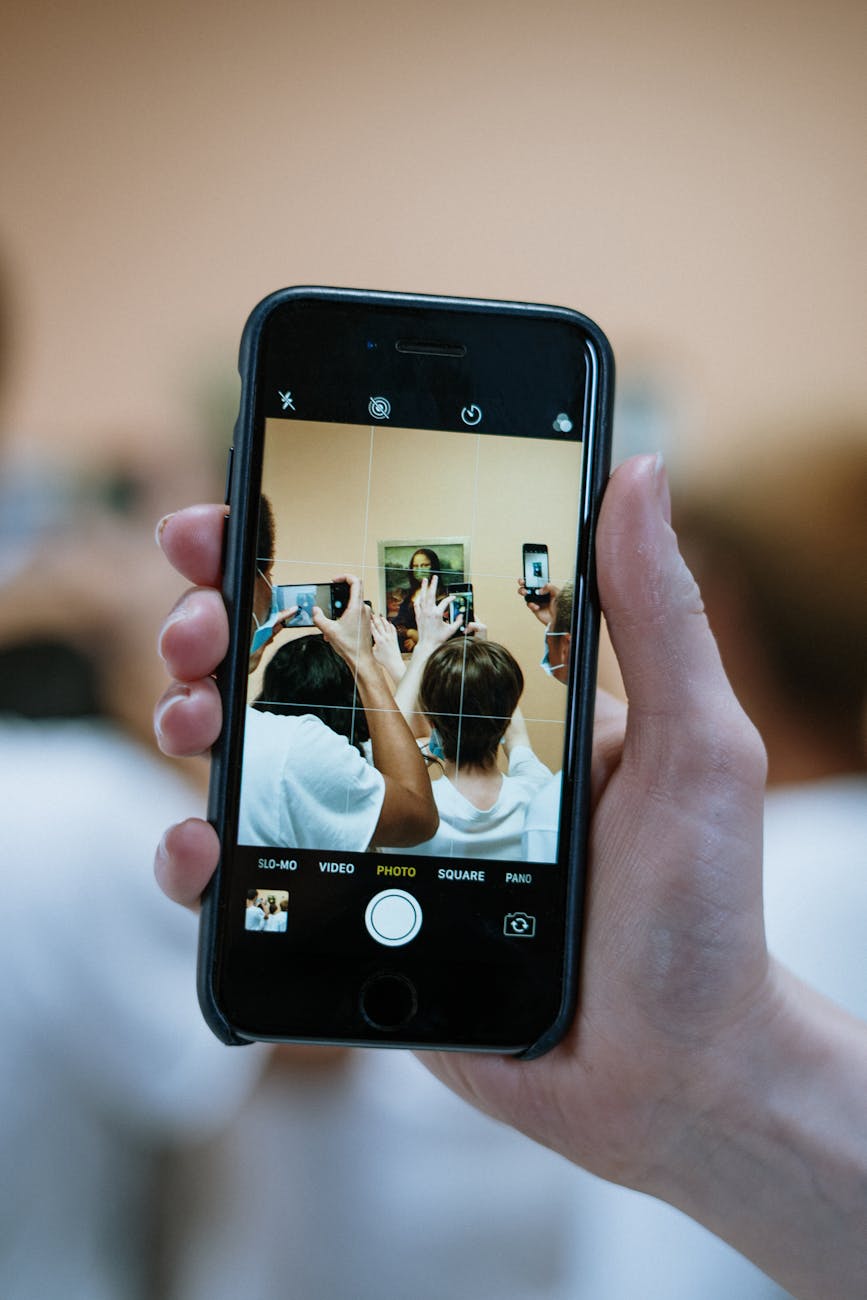
The iPhone is known for its powerful camera, but many users still feel their photos and videos don’t look professional.
The good news is: you don’t need a new iPhone or expensive apps to improve quality.
In this guide, you’ll learn:
- How to improve iPhone camera quality
- Best camera settings for photos and videos
- Simple shooting tips professionals use
- Easy editing tricks for better results
Why iPhone Photos and Videos Look Low Quality
If your iPhone photos or videos look blurry, dull, or noisy, it’s usually because of:
- Wrong camera settings
- Poor lighting
- Digital zoom
- Dirty camera lens
- Incorrect video resolution
Fixing these small things can dramatically improve quality.
Step 1: Clean Your iPhone Camera Lens (Very Important)
This sounds simple, but it makes a huge difference.
What to Do:
- Use a soft cloth
- Gently clean the camera lens
- Remove fingerprints and dust
A dirty lens can ruin even the best camera.
Step 2: Enable High-Quality Photo Settings
Go to:
Settings → Camera → Formats
Choose:
- High Efficiency (HEIF) for better quality and storage
- Or Most Compatible if you need JPEG
For best results:
- Turn on Apple ProRAW (if available)
ProRAW gives more detail and better editing control.
Step 3: Use the Right Photo Mode
Avoid always using default Auto mode.
Best Modes:
- Photo mode for daily pictures
- Portrait mode for people
- Night mode for low light
- Macro mode for close shots
Each mode is designed for a specific situation.
Step 4: Turn On Grid Lines for Better Composition
Go to:
Settings → Camera → Grid → ON
This helps you:
- Align subjects properly
- Follow the rule of thirds
- Take balanced photos
Better composition = better photo quality
Step 5: Avoid Digital Zoom (Quality Killer)
Never pinch to zoom unless necessary.
Why?
- Digital zoom reduces image quality
- Photos become blurry
Better Option:
- Move closer to the subject
- Use optical zoom lenses (0.5x, 1x, 2x, 3x)
Optical zoom keeps image quality sharp.
Step 6: Lock Focus and Exposure
Many users don’t know this trick.
How to Do It:
- Tap on the subject
- Hold until AE/AF LOCK appears
- Adjust brightness manually
This prevents:
- Overexposed photos
- Blurry focus
Professional photographers use this method.
Step 7: Improve Video Quality Settings
Go to:
Settings → Camera → Record Video
Best Settings:
- 4K at 30fps (best balance)
- Or 4K at 60fps for smooth motion
Also enable:
- HDR Video
- Enhanced Stabilization
Higher resolution = clearer videos.
Step 8: Use Cinematic Mode Correctly
Cinematic mode looks amazing when used properly.
Tips:
- Use good lighting
- Keep subject close
- Avoid fast movement
Bad lighting = bad cinematic effect.
Step 9: Always Shoot in Good Lighting
Lighting is more important than the camera.
Best Lighting Tips:
- Use natural daylight
- Face the subject toward light
- Avoid harsh shadows
- Never shoot against strong light
Even an old iPhone takes great photos in good light.
Step 10: Use Night Mode Properly
Night mode automatically turns on in low light.
Tips:
- Keep your hands steady
- Place phone on a surface
- Increase exposure time if needed
Night mode improves details and brightness.
Step 11: Turn On Video Stabilization
Shaky videos look low quality.
Go to:
Settings → Camera → Record Video → Stabilization ON
For best results:
- Hold phone with both hands
- Use slow movements
Stabilization makes videos look professional.
Step 12: Edit Photos and Videos (Light Editing)
Editing is not cheating. It’s necessary.
Best Built-in Editing Tools:
- Photos app → Edit
- Adjust brightness, contrast, sharpness
- Slightly increase clarity
Avoid:
- Over-editing
- Too much filter
Simple edits improve quality naturally.
Step 13: Use Trusted Editing Apps (Optional)
If you want more control:
- Lightroom Mobile
- Snapseed
- CapCut (for videos)
These apps:
- Improve sharpness
- Fix colors
- Enhance details
Use lightly for natural results.
Step 14: Update iOS Regularly
Apple improves camera performance with updates.
Go to:
Settings → General → Software Update
New iOS versions often improve:
- Camera processing
- Video stabilization
- HDR performance
Common Mistakes to Avoid
Using dirty lens
Overusing filters
Digital zoom
Shooting in poor light
Shaky hands
Avoiding these mistakes alone can improve quality a lot.
Do You Need a New iPhone for Better Quality?
No.
Even older iPhones can take:
- Sharp photos
- Clear videos
- Professional-looking content
Skills and settings matter more than hardware.
Final Tips for Best Results
- Clean lens before shooting
- Use correct mode
- Shoot in good lighting
- Lock focus and exposure
- Edit lightly
- Small improvements create big results.
My Suggestion
To increase iPhone photo and video quality:
- Fix camera settings
- Use proper lighting
- Avoid digital zoom
- Lock focus and exposure
- Shoot in 4K
- Edit smartly
With these simple steps, your iPhone camera can produce professional-quality photos and videos.

I am Narayan Pandeya, a technology news writer covering the latest updates in smartphones, apps, artificial intelligence, software releases, and gaming gadgets. I focus on researching reliable sources and presenting accurate, easy-to-understand tech news for a global audience. My goal is to explain new technologies in simple language and help readers stay informed about digital trends, products, and innovations shaping today’s tech world.